- Start at
chatgpt.com/business-hub, signed in to ChatGPT. A Free account is enough. - Search your business name. If it isn't listed, choose Create.
- Pick how customers reach you (a physical location or a website), then add your website.
- Prove you own the domain by adding the TXT record ChatGPT shows you. In Cloudflare, you can ask the built-in AI assistant to do it, or add it yourself in about two minutes.
- Optionally, add a business email and phone number so people who find you in ChatGPT can contact you.
- From Canada, you can create the profile and verify your domain today. Don’t start identity verification yet. When we tested it, the last step only offered a US location, after we had already uploaded our ID and photo. If you’re outside the US, check that your country is listed first. The agent builder and product tabs aren’t available either.
New to Business Hub? Our explainer on what Business Hub counts covers what the mentions, clicks and discovery topics mean, and what they don’t show. This page walks you through claiming your business.
Before you start
- A ChatGPT account the business controls. Whoever claims the business becomes its admin and can invite teammates or an agency later. Use a shared company login rather than one person's personal account, so the profile doesn't leave with an employee.
- Access to your domain's DNS (Cloudflare, GoDaddy, Namecheap, Squarespace, or wherever your domain is managed), or someone who has it. OpenAI also offers verification by business phone, business email or Shopify for some businesses; this guide covers the domain route.
- Optional: a business email and phone number you're happy to show customers.
Step 1: Find or create your business
Go to chatgpt.com/business-hub while signed in. You can also open Business Hub from the ChatGPT sidebar. Type your business name in the search box.
- If your business appears, select the listing that matches and follow the claim prompts.
- If it says No matching business, choose Create to add it. That's what we saw for Mentrel.
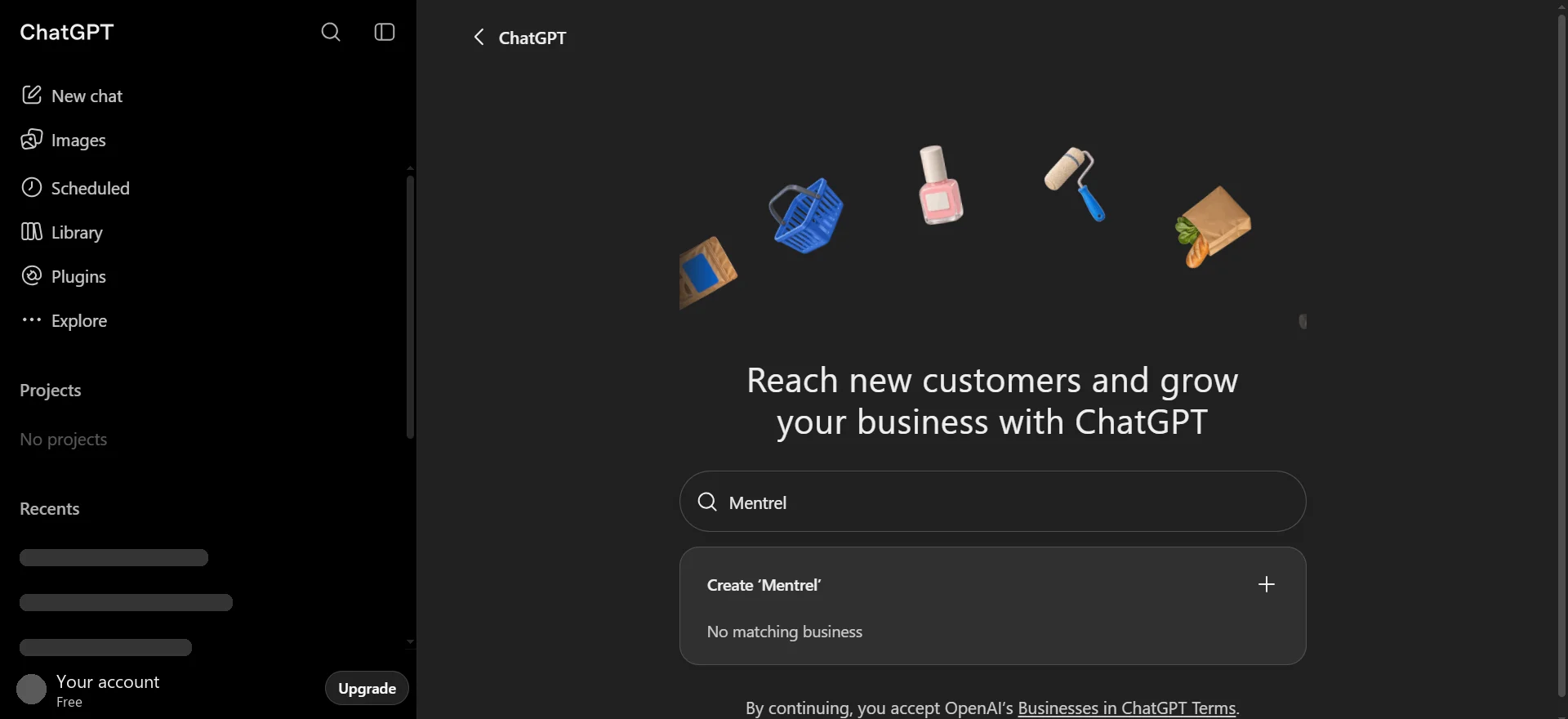
Read the terms first.Continuing means accepting OpenAI's Businesses in ChatGPT Terms, linked at the bottom of the page.
Step 2: Choose how customers reach you
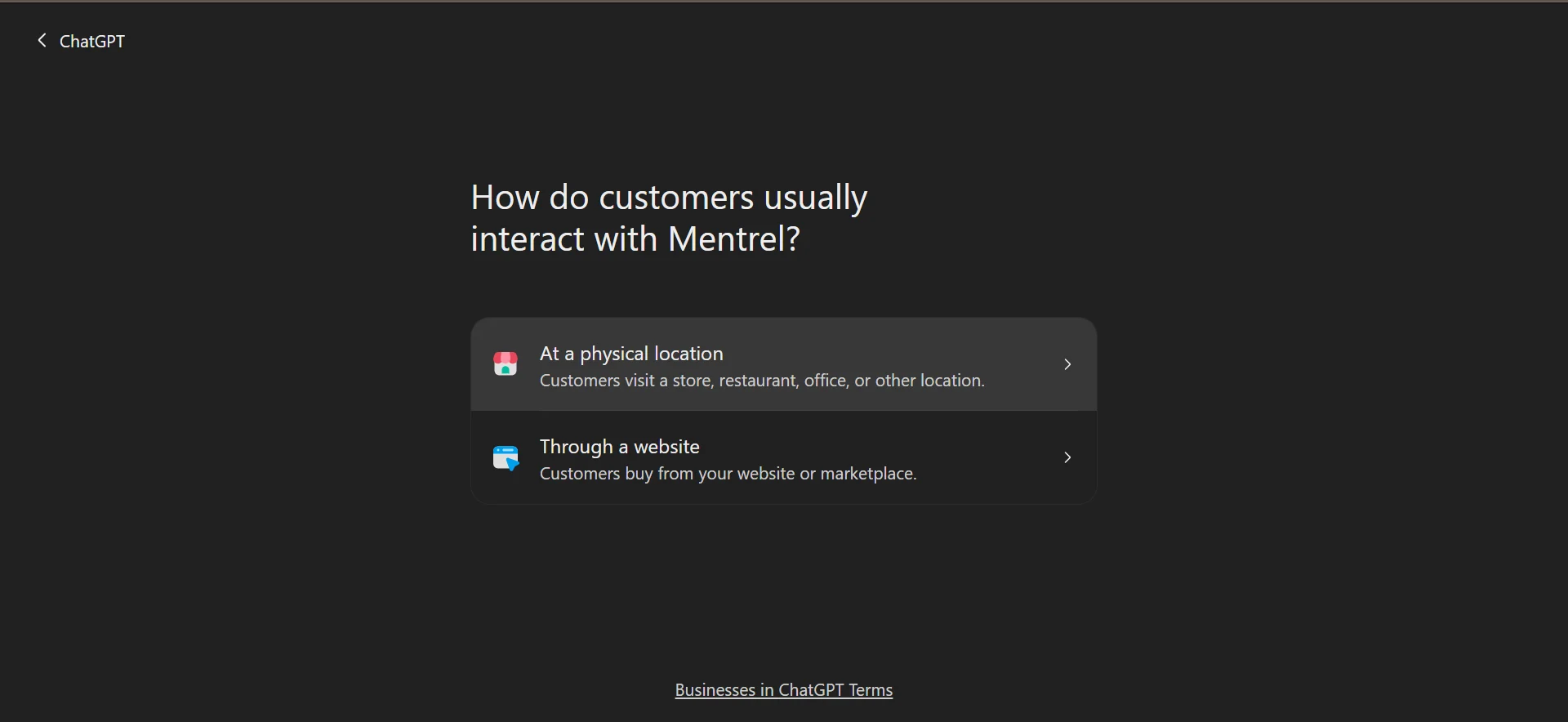
ChatGPT asks how customers usually interact with your business:
- At a physical location: customers visit a store, restaurant, office or other location.
- Through a website: customers buy from your website or a marketplace.
Online businesses, including service businesses like ours, should choose Through a website. OpenAI’s help article says that local stores and restaurants can currently only claim an existing US listing. This means that if you have a store outside the US, you may not get far with the first option yet.
When we first opened this screen there was a third option, for digital services. It has since disappeared, so for now digital and online service businesses also choose Through a website. If you see a digital services option when you get here, that's the one to pick.
Step 3: Add your website
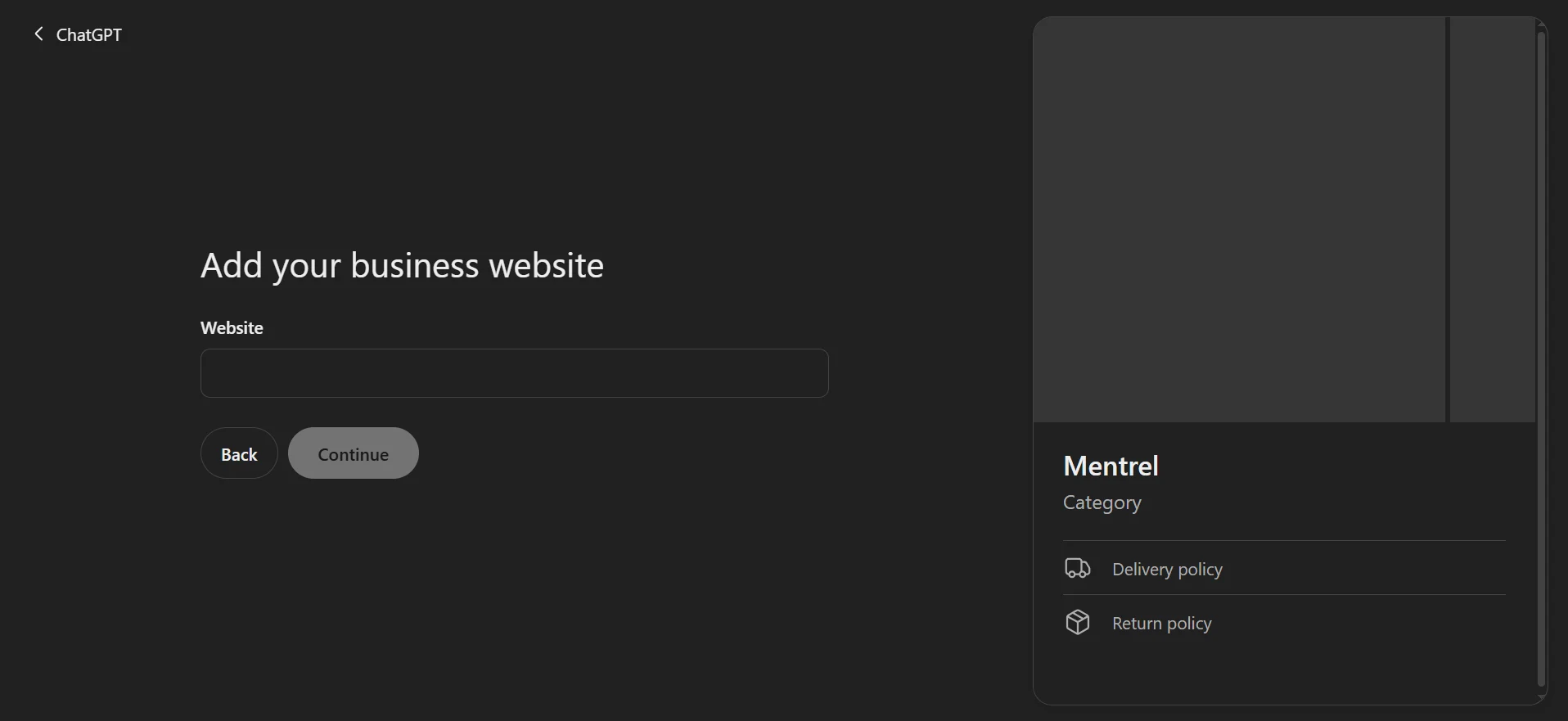
Enter your business website and continue. The profile preview on the right fills in as you go: name, category, website, and delivery and return policies, which you can complete once the profile is verified.
Step 4: Verify your domain with a TXT record
ChatGPT now asks you to prove you control the domain. It shows three values, each with a copy button:
| Field | What ChatGPT shows |
|---|---|
| Type | TXT |
| Name or host | openai-business-profile.yourdomain.com |
| Value or content | openai-business-profile= followed by a code unique to your claim |
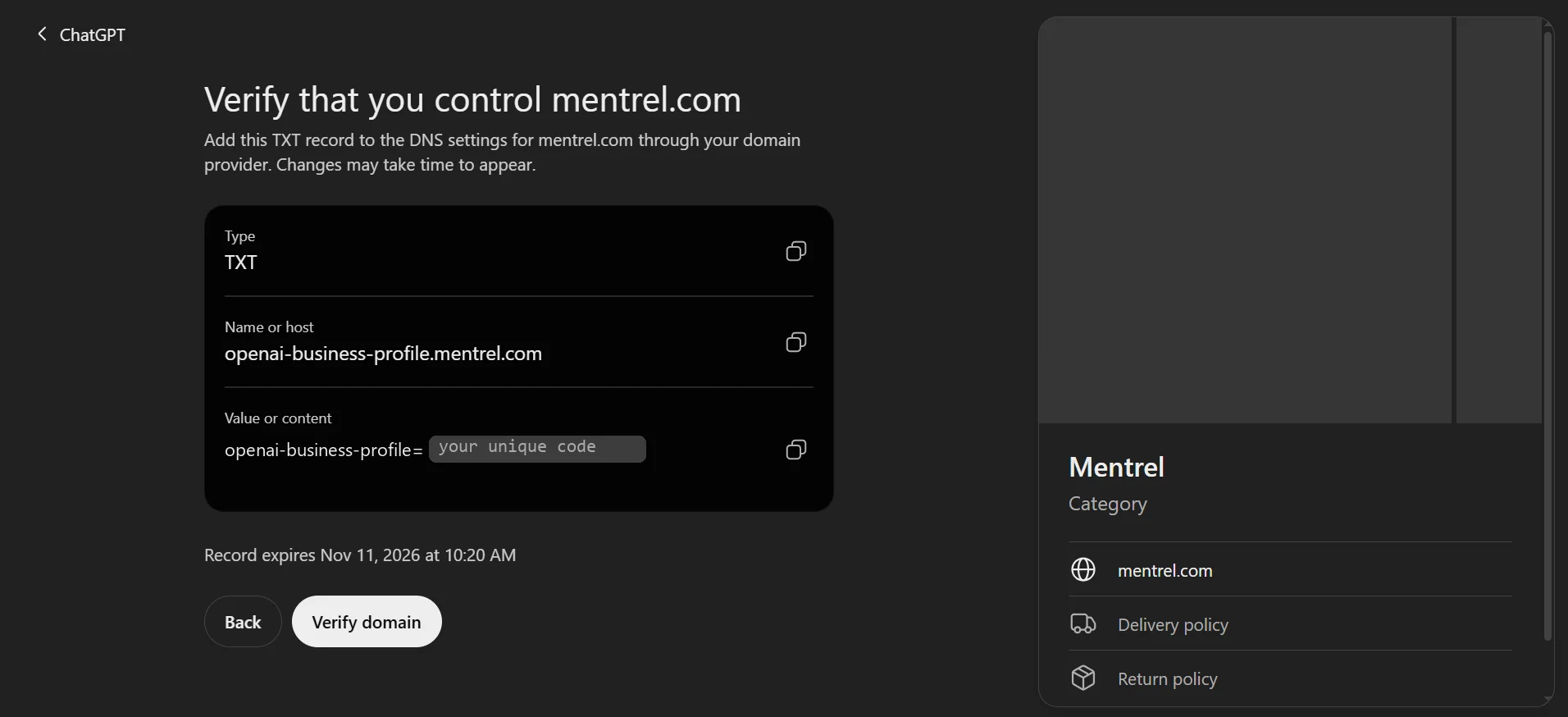
The code expires.The screen shows when the record expires. Add it to your DNS before then. If it lapses, go back and start the step again for a fresh code. Leave this tab open while you add the record.
Option A: let Cloudflare's AI assistant add it
If your domain is on Cloudflare, its dashboard has a built-in AI assistant, Agent Lee (in beta, on Free plans). Open your domain in the Cloudflare dashboard, select Ask AI in the upper-right corner, and ask in plain English:
Add a TXT record to yourdomain.com with the name
openai-business-profile and the content
openai-business-profile=PASTE-YOUR-CODE-HERE
Cloudflare shows what it plans to change and waits for your approval before it writes anything. Check that the name and content match ChatGPT's screen exactly, then approve.
Option B: add it by hand in Cloudflare
- Log in to the Cloudflare dashboard and select your domain.
- Go to DNS → Records, then select Add record.
- Set Type to
TXT. - In Name, enter only
openai-business-profile. Cloudflare adds your domain for you. - In Content, paste the whole value from ChatGPT, including the
openai-business-profile=part at the start. - Leave TTL on
Autoand select Save. TXT records have no proxy setting, so there's nothing else to change.
Other DNS providers
The fields are the same everywhere, although the labels may be different (Host, Name, Record). Be careful here, as most providers add your domain to whatever you type in the host field. Only enter openai-business-profile. If you paste the full openai-business-profile.yourdomain.com, many providers will create openai-business-profile.yourdomain.com.yourdomain.com and verification will fail.
Check the record, then verify
Before you click Verify domain, confirm the record is live. On Windows, macOS or Linux, run this in a terminal (replace the domain):
nslookup -type=TXT openai-business-profile.yourdomain.com 1.1.1.1
When the answer includes your openai-business-profile= value, go back to ChatGPT and select Verify domain. On Cloudflare this usually takes a minute or two. Other providers can take longer.
Step 5: Add your email and phone number (optional)
Next, ChatGPT asks for a business email address and phone number. Both are optional, but we recommend filling them in. They appear on your profile, so someone who finds you in ChatGPT can email or call you directly. Use contact details that you want customers to use, such as a shared inbox and your main phone line, not a personal mobile number.
What works in Canada and outside the US
We tested it from Canada on November 11, 2026. Claiming happens in stages, and finishing one stage doesn’t necessarily unlock the next. Here is what happened at each stage:
| Step | Canada and outside the US |
|---|---|
| Create the business profile | Works |
| Add the website and verify the domain | Works |
| Email and phone number | Works |
| Identity verification (Persona) | Don't start it |
| Agent builder | Not available |
| Products (product feed) | Not available |
| Publish profile changes and see insights | Needs identity verification |
In Canada or outside the US? Don’t verify your identity yet.The identity check asks for your government ID and a photo first. From Canada, the last step only offered a US location, and we couldn’t change it. We uploaded both and then couldn’t finish. As the US was the only option, we expect the same will happen in other countries. However, check the location options in your own account before you upload anything, and wait until your country is listed.
OpenAI’s help article says you need to verify your identity before you can publish changes to your business information, view insights or create an agent. For now, if your business can’t pass identity verification, you can only complete the domain and contact steps. Our Business Hub explainer describes the full process for eligible US businesses. OpenAI says it plans to expand to more countries and categories, but hasn’t given dates. We’ll update this page when that changes.
It’s still worth completing the first steps now. This way, your profile, verified domain and contact details will be ready when verification is available in your country.
If verification fails
- The lookup shows nothing. The record hasn't reached DNS yet, or it was saved under the wrong name. Check for the doubled domain described above.
- The lookup shows the record but ChatGPT still says no. Compare the value character by character with ChatGPT's screen. The copy buttons are safer than retyping.
- The code expired. Go back a step and start again. You'll get a new code, so replace the old record's content with it.
- Your listing says Contact support. The listing is locked. Use the Contact support option to ask for access.
- Someone else already claimed it. Open the profile, choose the more options menu, and select Dispute ownership.
Claiming fixes your details. It doesn't change the answer.
OpenAI is clear that claiming your business doesn’t make ChatGPT recommend you more. At Mentrel, we look at the answers themselves. We ask ChatGPT the questions your potential customers ask, and track how often you’re mentioned compared to your competitors. We also look at what ChatGPT says about your business and which sources it cites. You’ll see where you stand and what you can do to improve.
See what ChatGPT says about your brandFrequently asked questions
How do I add my business to ChatGPT?
Go to chatgpt.com/business-hub while signed in to ChatGPT, or open Business Hub from the ChatGPT sidebar. Search for your business name, then select your listing or create a new one.
Do I need a paid ChatGPT plan to claim my business?
No. We started the claim from a Free ChatGPT account. OpenAI also says you don't need an Ads account or an Enterprise agreement to claim an eligible business.
What do I enter as the TXT record name in Cloudflare?
Enter openai-business-profile in the Name field. Cloudflare adds your domain, so the record becomes openai-business-profile.yourdomain.com. Paste the full value ChatGPT shows, including the openai-business-profile= prefix, into Content.
Can a business in Canada or outside the US claim its profile in ChatGPT?
Partly. When we tried it from Canada on November 11, 2026, we could create our business profile and verify our domain. However, the agent builder and product tabs weren't available, and identity verification only offered a US location at the last step. If you're outside the US, check that your country is listed before you start. OpenAI says it plans to add more countries.